Subscribe:

Pages

LinkWithin

Related Posts Plugin for WordPress, Blogger...
Showing posts with label google. Show all posts

Wednesday, September 12, 2012

Google’s New Handwrite Search Feature for Easy Search

Google has always been so much innovative in providing people with variety of options they can choose to search from, they started with the text than came the image, than started the voice option and now you have the ability to write down your queries on Google's homepage and than will be converted into text for you to search easily.google handwrite feature
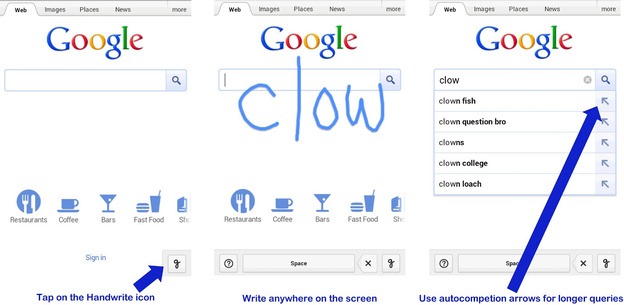
Well obviously every time its not convenient for you to enter your queries on your smartphone using than small keyboard, so now the whole Google's homepage is your canvas for writing down your queries and searching them easily on your smartphone or iPad.
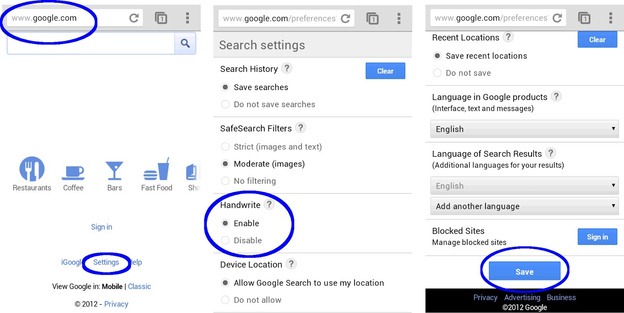
How to Enable Google Search Handwriting Feature :

google handwrite feature
Well if you wanna start exploring this new feature you can simply turn it on by going to Settings > Handwrite > Enable and saving the settings out. Well now you have to make sure that you reload your homepage so that setting could take effect and now you are ready to scramble across Google's homepage.
Saturday, September 8, 2012

How To Create Cool Google+ ID Cards

Hello friends, there is a fun for you. You can generate cool Google+ ID card with 4 awesome colors.
Way is so simple.

 Steps to do this:

1. Click here to go to we site.
2. Then enter you profile id.
3. After that "Nick Name that" you want to display.
4. Now put the joining date.
5. At the end just click on generate button.

Thursday, August 23, 2012

After 10 Year, Internet In 2012 [Infographic]


2002 Internet was so simple and boring,  there are very few people who know about it and use it. But in 2012 everyone knows what is internet and how to use it. So today I am posting a info graphic post who shows you in a very Interesting manner a miracle change in Internet.

Friday, July 6, 2012

Finding IP address in Gmail From Email Header's


Email headers determine where a message is sent, and records the specific path the message follows as it passes through each mail server.
gmail

When You send an email to any of your friends or others could be your Girl friends Never mind. But When you send the email through any email client like Gmail , Yahoo Mail , Hotmail, AOL, Outlook Express, etc it also sends the Email Header which contains Some important information for Us i.e.Hackers.

Basically it is a feature of Mailing protocol.
Now when the victim sends you a Email through any ,Gmail, Yahoo mail etc doesn't matter, then mail comes to your inbox in the form of Email Header but the your Email client changes it and shows only readable part of it.

Well This article is based on how to view Email headers in Gmail. We Will talk about others in Future too. Yeah its a kind of easy tutorial....

Finding IP address in Gmail

  1. Login to your Gmail account with your username and password.
  2. Open the mail.
  3. To display the email headers,
    • Click on the inverted triangle beside Reply. Select Show Orginal.
  4. Look for Received: from followed by the IP address between square brackets [ ].
    Received: from [69.138.30.1] by web31804.mail.mud.yahoo.com
  5. If you find more than one Received: from patterns, select the last one.
Ok Most of the users use Gmail i think and its the most popular one also from the rest of the email clients that's why i liked to write this one first.

Example

Here's an example of a message header for an email sent fromMrJones@emailprovider.com to MrSmith@gmail.com:
Delivered-To: MrSmith@gmail.com
Received: by 10.36.81.3 with SMTP id e3cs239nzb; Tue, 29 Mar 2005 15:11:47 -0800 (PST)
Return-Path:
Received: from mail.emailprovider.com (mail.emailprovider.com [111.111.11.111]) by mx.gmail.com with SMTP id h19si826631rnb.2005.03.29.15.11.46; Tue, 29 Mar 2005 15:11:47 -0800 (PST)
Message-ID: <20050329231145.62086.mail@mail.emailprovider.com>
Received: from [11.11.111.111] by mail.emailprovider.com via HTTP; Tue, 29 Mar 2005 15:11:45 PST
Date: Tue, 29 Mar 2005 15:11:45 -0800 (PST)
From: Mr Jones
Subject: Hello
To: Mr Smith </MRJONES@EMAILPROVIDER.COM></MRJONES@EMAILPROVIDER.COM>
Notice the received is the stuff we need here to get the IP Address of the victim.
Received: from [11.11.111.111] by mail.emailprovider.com via HTTP; Tue, 29
Ok Hope You all got the idea of the Email Headers in Gmail

Friday, June 22, 2012

Gmail Drive guide to use Gmail space as online storage drive hack


Gmail Drive guide to use Gmail space as online storage drive hack


Gmail is really famous among users of all the email clients available on the web and that is not because it has a cool interface rather it is famous for its reliability and huge space which includes storage space of 6000 megabytes  and increasing. Google doesn’t stop here and recently Google announced that users can now buy more online storage for Google services just by paying a little amount. So why not use this online storage space and use it externally probably as a network drive or one of your own computer hard drives.

Use Google Storage Space as Google Drive
I am going to show different methods by which your can use your Gmail account space as your external hard drive that too free. You will be able to download (or should I say copy) attachments from your Gmail account to your computer just as you would do from a drive on your computer. You can also use this space to upload content direct from your computer and save it online in your Gmail account.

1. GMAIL DRIVE 
GMail Drive is a Shell Namespace Extension that creates a virtual filesystem around your Google Mail account, allowing you to use Gmail as a storage medium.
GMail Drive creates a virtual filesystem on top of your Google Gmail account and enables you to save and retrieve files stored on your Gmail account directly from inside Windows Explorer. GMail Drive literally adds a new drive to your computer under the My Computer folder, where you can create new folders, copy and drag’n'drop files to.
With GMail Drive you can easily copy files to your Google Mail Account and retrieve them again.
When you create a new file using GMail Drive, it generates an e-mail and posts it to your account. The e-mail appears in your normal Inbox folder, and the file is attached as an e-mail attachment. GMail Drive periodically checks your mail account (using the Gmail search function) to see if new files have arrived and to rebuild the directory structures. But basically GMail Drive acts as any other hard-drive installed on your computer.
You can copy files to and from the GMail Drive folder simply by using drag’n'drop like you’re used to with the normal Explorer folders.
Because the Gmail files will clutter up your Inbox folder, you may wish to create a filter in Gmail to automatically move the files (prefixed with the GMAILFS letters in the subject) to your archived mail folder.
Please note that GMail Drive is still an experimental tool. There’s still a number of limitations of the file-system (such as total filename size must be less than 65 characters). Since the tool hooks up with the free Gmail Service provided by Google, changes in the Gmail system may break the tool’s ability to function. I cannot guarantee that files stored in this manner will be accessible in the future.

Download here

2. PHP GMAIL DRIVE (PGD) 

Php Gmail Drive is a new type of file sharing utility. Unlike typical file servers (say xDrive) it uses Gmail as backend file server. You can enjoy it simply by hosting a small PHP script in your web site without any database. Gmail file space is more than 2GB, so you can imagine you already have such a big space on internet. However, you will require a Gmail account (If you don’t have any Gmail address, go GmailSwap or ask your friends.). PGD automatically connects Gmail server and fetches list of all attached files and generate downloadable links in a tree like view. If you are looking for a file server to upload your music or notes without any hassle, PGD is ideal for you. Technically speaking PGD is wrapper of Gmailer . Thought there is  no need to know hecks of PHP or Gmailer.  Just you have to check that your PHP hosting service provider has curl extension of PHP to handle HTTP/HTTPS traffic.
Features 
* Successfully connects to Gmail and only grabs list of Attachments in Gmail messages.
* List of attachments are displayed with inbuilt Javascript engine. You can customize output to any other formats.
* 100% compliant to GMAILFS. So you can upload with Windows Gmail Shell extension or Linux GmailFS utilities..
* Supports Multiple Gmail accounts in the same script .
* Supports all browsers.
* Total size is less than 100 KB.
Download Here

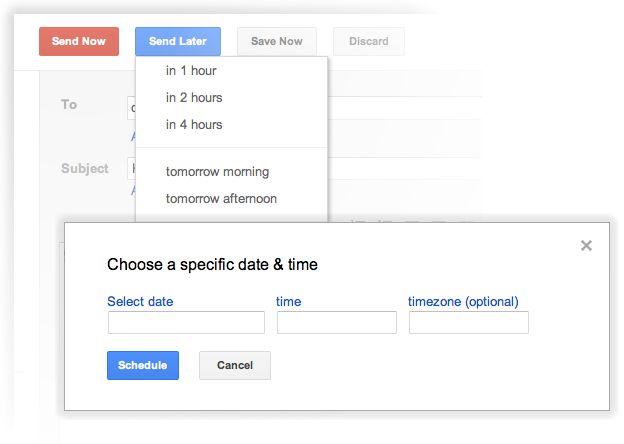
How to Schedule Emails in Gmail to be Sent Later


If you want to send emails later or we say schedule them in Gmail than Right Inbox can do this work easily. Well Right Inbox is a just an extension which when installed and permitted can be embed into your Gmail account and can be used to schedule your emails right away. This can be helpful if you wanna send some occasion greetings or any other stuff or a particular day but you might not be available for writing that email down than you can schedule it now and let Right Inbox deliver it for you when ever you want it to be.Right-Inbox-Gmail
If you want to install Right Inbox and schedule your emails, than you can visit there there installation page to get extension and follow all the steps to authenticate it with your Google account. So now just send all the greetings right away without actually being there sitting and typing for them :)

Thursday, June 21, 2012

"Google under the water" an awesome Interference of Google Image search


Google under water is an image search Interference, based on Jquery and javascripts, just type and keyword for image search and hit enter :)

experience the under water search !!

Sunday, June 10, 2012

Hacking Google Operators

Type the following highlited words in google search box. 
Google has several google operators that can help you find specific information, specific websites or inquire about the indexing of your own site, below you will find the most important ones:

GoogleSecrets-TipsTricks


define:

-- This google operator will find definitions for a certain term or word over the Internet. Very useful when you come across a strange word when writing a post. I use this as a google dictionary. example : (define: proxy servers)


info:

--The google info operator will list the sets of information that Google has from a specific website (i.e. info:http://www.cooltech2012.blogspot.in)


site:

--This google operator can be used to see the number of indexed pages on your site (i.e.site:www.cooltech2012.blogspot.in). Alternative it can also be used to search for information inside a specific site or class of sites.


link:

--This google link operator allows you to find backlinks pointing to your site. Unfortunately the count is not updated frequently and not all backlinks are shown


allinurl:

--Using this Google operator will limit the search to results that contain the desired keywords on the URL structure. (i.e. allinurl:dailyhealttips)


fileformat:

--Useful Google operator for finding specific file formats. Sometimes you know that the information you are looking for is likely to be contained in a PDF document or on a PowerPoint presentation, for instance. (i.e. “fileformat:.pdf market research” will search for PDF documents that contain the terms “market” and “research”).

Friday, June 1, 2012

Top 10 Cool Google Tricks

Today I am going to discuss about 10 really cool and funny google tricks.
google tricks
1. Google gravity
Open google.com, Type Google Gravity in the search box and click on I’m feeling Lucky button.Feel the effect of gravity on google. All page components will fall down due to gravity.
2. Epic Google
Open google.com, Type Epic Google in the search box and click on I’m feeling Lucky button. Each component on the page will start growing bigger and bigger.
3. Google Hacker
Open google.com, Type Google Hacker in the search box and click on I’m feeling Lucky button. How google will look if it was made by a hacker.
4. Annoying Google
Open google.com, Type Annoying Google in the search box and click on I’m feeling Lucky button.
5. Meaning Of Search For Google
Open google.com, Type search in the search box and click on I’m feeling Lucky button.
6. Loneliest Number
Open google.com, Type loneliest number in the search box and click on Search button. Find out which number is the loneliest number according to google.
7. Meaning Of Recursion
Open google.com, Type Recursion in the search box and click on search button. You can notice Did You Mean: Recursion text on top of results and it is recursively linked to the same page.
8. Google Loco
Open google.com, Type Google loco in the search box and click on I’m feeling Lucky button.
9. The number of horns on a unicorn
Open google.com, Type number of horns on a unicorn in the search box and click on search button.
10. Chuck Norris
Open google.com, Type Find Chuck Norris in the search box and click on I’m feeling Lucky button. Google won’t search for Chuck Norris because it knows you don’t find Chuck Norris, he finds you.

Revolver map

Rank

Linked

 
ExactSeek.com